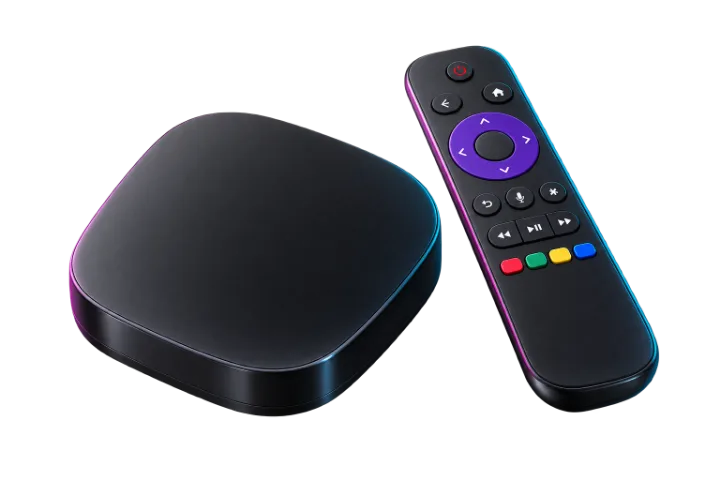
Read this first. Roku has no player app, so this one runs through a phone. If you are buying a device for this, buy any other one on this page.
The steps
Do these in order. If a screen does not look like the one described, stop and message us rather than guessing — it is quicker.
Set it up on your phone first
Follow the Android or iPhone guide and get it playing there. Nothing below works until that part does.
Turn on mirroring on the Roku
On the Roku, open
Settings → System → Screen mirroringand set the mode to Prompt or Always allow.Send the screen from your phone
On Android, use Cast or Smart View from the quick settings. On an iPhone you need a third-party app, because Roku does not support AirPlay from every model — check
Settings → Apple AirPlay and HomeKiton the Roku to see whether yours does.
If it will not play
The three things that actually go wrong on this device. Open the one that sounds like yours.
The phone cannot find the Roku
Both have to be on the same wi-fi network. Guest networks usually block this.
The picture is soft or lags behind the sound
That is mirroring, not the stream. A £30 Fire TV Stick plugged into the same television will play it properly.